Table of Contents
ToggleGetting locked out of your Fortnite account because someone halfway across the world guessed your password is not the vibe. Neither is missing out on free emotes and getting barred from competitive tournaments. Enabling two-factor authentication (2FA) on your Epic Games account fixes both problems in about five minutes, and throws in some exclusive cosmetics just for turning it on.
Most players know 2FA exists, but plenty still skip it. Maybe you think it’s complicated. Maybe you assume it’s only for streamers with thousands of dollars in skins. It’s not. Whether you’re rocking a default skin on your first match or you’ve got every Battle Pass since Chapter 1, 2FA is non-negotiable in 2026. Epic’s been pushing it harder than ever, and the rewards have only gotten better.
This guide walks through every step of enabling 2FA on your Fortnite account, choosing the best method for your setup, troubleshooting the weird hiccups that pop up, and locking down your account so nobody’s gifting themselves your V-Bucks while you’re asleep.
Key Takeaways
- Enable 2FA on your Fortnite account to prevent hackers from accessing your account, stealing V-Bucks, or using rare skins without adding extra verification steps beyond your password.
- Fortnite requires two-factor authentication to participate in competitive tournaments and cash tournaments, so enabling 2FA is mandatory if you want to queue for Arena or event-based competitions.
- Choose an authenticator app over email authentication for faster, more secure code generation that works offline and isn’t vulnerable to email compromises.
- Enabling Fortnite’s 2FA rewards you with the exclusive Boogiedown Emote and occasional event-based cosmetics that can’t be purchased with V-Bucks.
- Protect your entire Epic Games account ecosystem—including your email account with its own 2FA, use unique strong passwords, and regularly review account activity to detect unauthorized logins.
What Is Two-Factor Authentication (2FA) in Fortnite?
Two-factor authentication (2FA) is an extra security layer that requires a second verification step beyond your password when logging into your Epic Games account. Instead of just typing in your password and getting instant access, you’ll also need to confirm your identity using a code sent to your email or generated by an authenticator app.
Think of it like a deadbolt on top of a regular lock. Someone might crack your password through a phishing scam or a data breach from another site where you reused credentials (don’t do that, by the way). But without access to your email or authenticator app, they’re stuck at the door.
Epic Games supports two primary 2FA methods: email authentication and authenticator app authentication. Email sends a time-sensitive code to your registered address whenever you log in from a new device. Authenticator apps like Google Authenticator, Microsoft Authenticator, or Authy generate rolling six-digit codes that refresh every 30 seconds.
Once enabled, 2FA applies across all Epic Games services, Fortnite, Epic Games Store, Unreal Engine, the whole ecosystem. You’re not just protecting your Fortnite skins: you’re securing your entire Epic account, including any purchased games, saved payment methods, and linked platform accounts for PlayStation, Xbox, or Nintendo Switch.
Why You Should Enable 2FA on Your Fortnite Account
Turning on 2FA isn’t just a “nice to have.” Epic locks meaningful perks and access behind it, and the security benefits are legit. Here’s why you should stop putting it off.
Protect Your Account from Hackers and Unauthorized Access
Account hijacking in Fortnite isn’t rare, it’s common enough that Epic built an entire support pipeline for it. Hackers target accounts with rare skins, high V-Buck balances, or linked payment info. Once they’re in, they can gift items to burner accounts, spend your currency, or even get you banned by cheating in matches under your name.
Passwords alone don’t cut it anymore. If your email and password combo leaked in a breach from some random forum you signed up for in 2014, credential-stuffing bots will try that combo on Epic within hours. 2FA stops that cold. Even if someone has your exact password, they can’t log in without the second factor.
Many players have learned this the hard way when they wake up to find their account drained or banned. According to data from esports security tracking, compromised gaming accounts spiked by over 30% in 2025, with Fortnite consistently ranking among the top targets due to its massive player base and active item economy.
Unlock Exclusive Free Rewards and Emotes
Epic sweetens the deal by giving you free cosmetics just for enabling 2FA. As of 2026, the primary reward is the Boogiedown Emote, a dance that’s been the signature 2FA unlock since 2018. It’s not available in the Item Shop, can’t be purchased with V-Bucks, and you won’t get it any other way.
Some limited-time events and collaborations have also granted bonus rewards for 2FA users, like exclusive sprays, back bling, or early access to creative maps. Epic occasionally rotates these, so checking your account rewards tab after enabling 2FA is worth it.
Yeah, it’s just a cosmetic. But it’s a free cosmetic that shows you took five minutes to lock down your account. And in a game where every emote counts for post-elimination BM, you take what you can get.
Participate in Competitive Tournaments and Events
If you’ve ever tried to queue for a Cash Cup, Arena tournament, or FNCS qualifier, you’ve probably hit the 2FA wall. Epic requires two-factor authentication to enter any competitive playlist or tournament with prizes. No exceptions.
This rule applies to every competitive mode, from small community tournaments to official Epic-run events with million-dollar prize pools. It’s an anti-cheating and anti-smurfing measure, making it slightly harder to spin up throwaway accounts cuts down on ban evasion and fraud.
Even if you’re not grinding for cash, some Limited-Time Modes and Creative maps that use competitive rulesets require 2FA. You might think you’re just playing casually, then find yourself locked out of the newest LTM your friends are running because you skipped account security.
How to Enable 2FA in Fortnite: Step-by-Step Guide
Enabling 2FA on your Epic Games account is straightforward, but the process happens entirely outside the game client. You’ll do everything through Epic’s website. Here’s how to get it done, start to finish.
Step 1: Log Into Your Epic Games Account
Open a browser and navigate to epicgames.com. Click Sign In in the top-right corner and enter your Epic Games account credentials.
If you’ve linked your Fortnite account to PlayStation Network, Xbox Live, or Nintendo Account and you’re not sure of your Epic login, you can sign in using those platform credentials. Just click the corresponding icon (PlayStation, Xbox, Nintendo, etc.) on the login screen.
Make sure you’re logging into the correct Epic account, the one tied to your Fortnite progress and skins. If you’ve got multiple accounts or you’re signed into the wrong one, you won’t see the right data or rewards later.
Step 2: Navigate to Account Security Settings
Once logged in, hover over your account name in the top-right corner and select Account from the dropdown. This takes you to your Epic Games account dashboard.
On the left sidebar, click Password & Security. This is where all the important security settings live: password changes, connected accounts, and 2FA options.
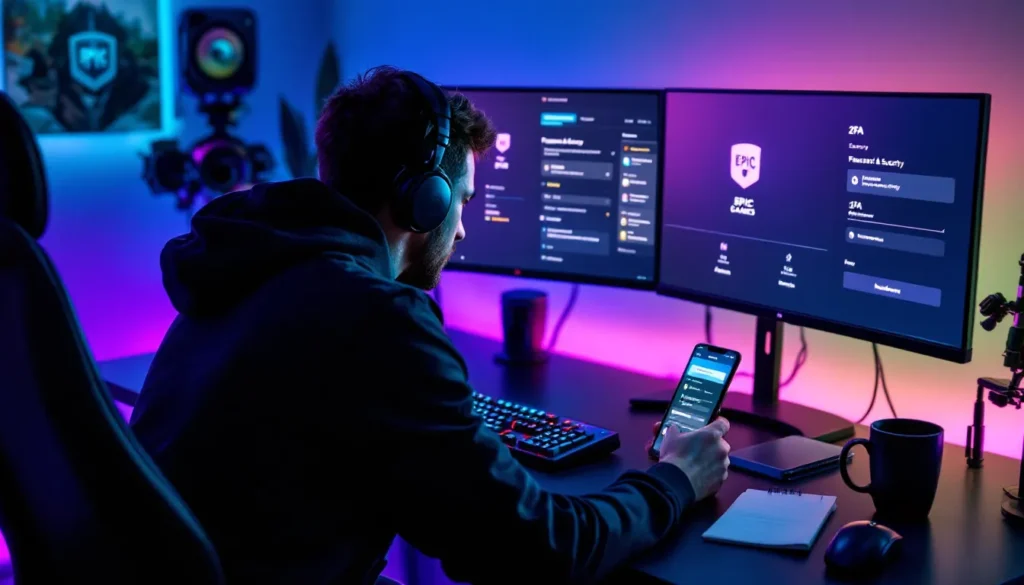
Scroll down until you see the Two-Factor Authentication section. You’ll notice two options listed: Email Authentication and Authenticator App. Both are valid: the difference comes down to convenience versus security, which we’ll break down in the next major section.
Step 3: Choose Your 2FA Method (Email or Authenticator App)
Click Enable next to your preferred method.
-
Email Authentication: Epic will send a six-digit code to your registered email address every time you log in from a new device or browser. This is the fastest setup and works fine if you have reliable access to your email and it’s secured with its own strong password (ideally, also protected by 2FA).
-
Authenticator App: This uses a third-party app like Google Authenticator, Microsoft Authenticator, Authy, or any other TOTP-compatible app. The app generates time-based codes that refresh every 30 seconds. You’ll need to install the app on your phone first, then scan a QR code Epic provides.
For most players, the authenticator app is the better pick. It’s faster than waiting for emails, works offline, and isn’t vulnerable to email account compromises. But email authentication is fine if you’re setting this up quickly and don’t want to mess with an app.
Step 4: Complete the Verification Process
If you chose Email Authentication:
Epic will immediately send a six-digit code to your registered email address. Check your inbox (and spam folder, just in case). Enter the code in the box on the Epic website and click Activate.
You’re done. From now on, any time you log into Epic Games on a new device, you’ll get an email with a fresh code.
If you chose Authenticator App:
Epic displays a QR code on-screen. Open your authenticator app (if you don’t have one, download Google Authenticator or Microsoft Authenticator from your app store). Tap the + or Add Account button and select Scan QR Code.
Point your camera at the code on your screen. The app will automatically add your Epic Games account and start generating six-digit codes. Enter the current code shown in your app into the box on Epic’s website and click Activate.
Epic also provides a manual setup key (a long string of characters) if your camera isn’t working or you’re setting this up on desktop without a phone handy. You can manually type that key into your authenticator app.
Step 5: Claim Your Free Rewards In-Game
Once 2FA is enabled, close your browser and launch Fortnite. The Boogiedown Emote should appear in your Locker automatically, usually within a few minutes. If it doesn’t show up immediately, restart your game client.
Some seasonal or event-based 2FA rewards require you to check the in-game Message of the Day or claim them from the Battle Royale lobby. Epic occasionally rotates these, so keep an eye on your notifications tab if you’re expecting something beyond Boogiedown.
Choosing the Best 2FA Method for Your Account
Both email and authenticator app methods work, but they’re not equal. Your choice depends on how much you value speed, security, and convenience.
Email Authentication: Quick and Convenient
Email-based 2FA is the fastest to set up. No apps, no QR codes, just your inbox. You enable it, confirm the initial code, and you’re done in under a minute.
It’s fine if:
- You have consistent access to your email on your phone or another device.
- Your email account is secured with a strong, unique password (and ideally its own 2FA).
- You’re not worried about SMS or email interception risks.
The downside? If your email gets compromised, your Fortnite account is one step away from being breached too. Email-based 2FA is only as strong as your email’s security. If you’re reusing passwords or your email provider gets phished, you’re vulnerable.
Plus, codes can take a minute or two to arrive, especially if your email provider’s having a slow day or your inbox is flooded. And if you’re somewhere without cell service or Wi-Fi, you’re stuck.
Authenticator App: Maximum Security for Serious Gamers
Authenticator apps are the gold standard. They generate codes locally on your device, so there’s no reliance on email servers, no waiting, and no interception risk. Even if Epic’s email system goes down or your inbox gets hacked, your 2FA codes keep rolling.
Go with an authenticator app if:
- You care about account security and have rare skins, high V-Buck balances, or linked payment info.
- You play competitively or stream and can’t afford account downtime.
- You want instant code generation without waiting for emails.
Popular gaming security guides consistently recommend authenticator apps over email for any account with real value. The only real downside is the initial setup, scanning a QR code and installing an app. After that, it’s faster and more reliable than email in every way.
One tip: back up your authenticator app’s recovery codes or enable cloud sync if your app supports it (Authy does: Google Authenticator added it recently). If you lose your phone and didn’t save recovery info, getting back into your Epic account becomes a support ticket nightmare.
Troubleshooting Common 2FA Setup Issues
2FA setup is usually smooth, but a few common hiccups can stall you out. Here’s how to fix them.
Not Receiving the Verification Email
This is the most common issue with email-based 2FA. You click enable, but the code never shows up.
Check your spam and promotions folders first. Email filters love to bury Epic’s automated messages. Search your inbox for “Epic Games” or “[email protected]” to see if it got misfiled.
Wait a few minutes. Email delivery can lag, especially if Epic’s servers are under heavy load during a new season launch or event. Give it five minutes before assuming it’s broken.
Make sure the email address on your Epic account is correct. Go back to your Account settings and verify the email listed under Account Info. If it’s an old address you no longer use, update it and try again.
Whitelist Epic’s email domain. If you’re using a custom email provider or strict spam filters, add [email protected] and epicgames.com to your safe sender list.
Still nothing? Try switching to authenticator app instead. It skips email entirely and works around the issue.
Authenticator App Code Not Working
You scanned the QR code, entered the six-digit code, and Epic says it’s invalid. Frustrating.
Check your device’s time settings. Authenticator apps rely on time-based one-time passwords (TOTP). If your phone’s clock is even 30 seconds off, the codes won’t sync. Go to your phone’s settings and enable automatic date/time syncing.
Make sure you’re entering the current code. Codes refresh every 30 seconds. If you’re copying it slowly or switching apps, it might expire before you paste it. Enter it quickly while it’s still active.
Rescan the QR code. If you scanned it incorrectly or there was a glitch, delete the Epic Games entry from your authenticator app and start over. Epic will generate a new QR code if you disable and re-enable authenticator 2FA.
Try a different authenticator app. Some users report issues with certain apps. Google Authenticator and Microsoft Authenticator are the most widely compatible.
Already Have 2FA but Haven’t Received Rewards
You enabled 2FA weeks ago, but you never got the Boogiedown Emote or any other rewards.
Restart Fortnite. Rewards don’t always grant instantly. Close the game completely and relaunch. Check your Locker under Emotes.
Make sure you enabled 2FA on the correct Epic account. If you have multiple accounts or linked the wrong one to your console, the rewards might be on a different account. Log into epicgames.com and verify which account is tied to your Fortnite progress.
Check if you already claimed it. Search your Emotes for “Boogiedown.” You might have gotten it ages ago and forgot.
If it’s still missing after 24 hours and you’ve confirmed 2FA is active, contact Epic Support. Go to support.epicgames.com, log in, and submit a ticket under Account > 2FA Rewards. Include your Epic account name and a screenshot of your 2FA settings.
Managing and Disabling 2FA on Your Fortnite Account
Once 2FA is enabled, you might need to switch methods or (rarely) disable it. Here’s how to manage it.
How to Change Your 2FA Method
You can’t run both email and authenticator 2FA at the same time, Epic only lets you pick one. But you can switch between them anytime.
Log into your Epic account at epicgames.com, go to Password & Security, and scroll to the Two-Factor Authentication section. Click Disable next to your current method (Email Authentication or Authenticator App).
Epic will ask you to confirm. Once disabled, the other method’s Enable button becomes active. Click it and follow the setup steps for your new method.
Your account loses 2FA protection for a brief window during the switch, so don’t leave it disabled. Immediately re-enable the other method.
How to Disable 2FA (And Why You Shouldn’t)
Disabling 2FA is the same process: log into epicgames.com, go to Password & Security, find the Two-Factor Authentication section, and click Disable next to your active method.
Epic will ask you to confirm. Once you do, 2FA is off.
But seriously, don’t do this. You lose access to competitive playlists, events, and tournaments the moment you disable 2FA. You also put your account at risk. If you’re disabling it because codes are annoying, switch to authenticator app, it’s faster and less intrusive than email.
The only valid reason to disable 2FA is if you permanently lost access to your email and authenticator and you’re working with Epic Support to recover your account. Otherwise, leave it on.
Additional Security Tips to Protect Your Fortnite Account
2FA is the biggest security upgrade you can make, but it’s not the only one. Here are a few more steps to lock down your account.
Use a unique, strong password for your Epic account. Don’t reuse passwords from other sites. If one service leaks your credentials, hackers will try them everywhere. Use a password manager like Bitwarden, 1Password, or Dashlane to generate and store complex passwords.
Enable 2FA on your email account too. Your email is the recovery point for your Epic account. If someone hacks your email, they can reset your Epic password and bypass 2FA during account recovery. Secure your email with its own 2FA, preferably an authenticator app.
Unlink unused platform accounts. If you’ve connected old consoles or platforms you no longer use, unlink them from your Epic account. Fewer connection points mean fewer attack vectors. You can manage linked accounts under the Connections tab in your Epic account settings.
Watch for phishing scams. Epic will never email you asking for your password, 2FA codes, or account details. Phishing emails disguised as Epic support or “free V-Bucks” offers are common. Always verify the sender’s email domain and never click suspicious links. When in doubt, go directly to epicgames.com by typing it into your browser.
Review account activity regularly. Epic logs every login and device connected to your account. Check the Account Activity section in your settings every few weeks. If you see logins from locations or devices you don’t recognize, change your password immediately and contact Epic Support.
Multiple gaming security resources emphasize that layering these protections, strong passwords, 2FA, email security, and vigilance against phishing, creates a defense-in-depth approach that makes account compromise exponentially harder.
Conclusion
Enabling 2FA on your Fortnite account takes five minutes and solves multiple problems at once. You lock out hackers, unlock free rewards, and gain access to competitive modes. There’s no real downside unless you enjoy getting your account stolen or missing out on tournaments.
Authenticator apps are faster and more secure than email-based 2FA, but either method is better than nothing. Set it up, back up your recovery codes, and forget about it. Your account will be safer, your Locker will have Boogiedown, and you’ll never hit that “2FA required” wall when you’re trying to queue Arena.
Don’t wait until you’re locked out or your skins are gone. Enable 2FA now, and you won’t have to think about it again.